Scan this QR to experience our WhatsApp store demo
1 %
Message
Open Rate
What You’ll Experience
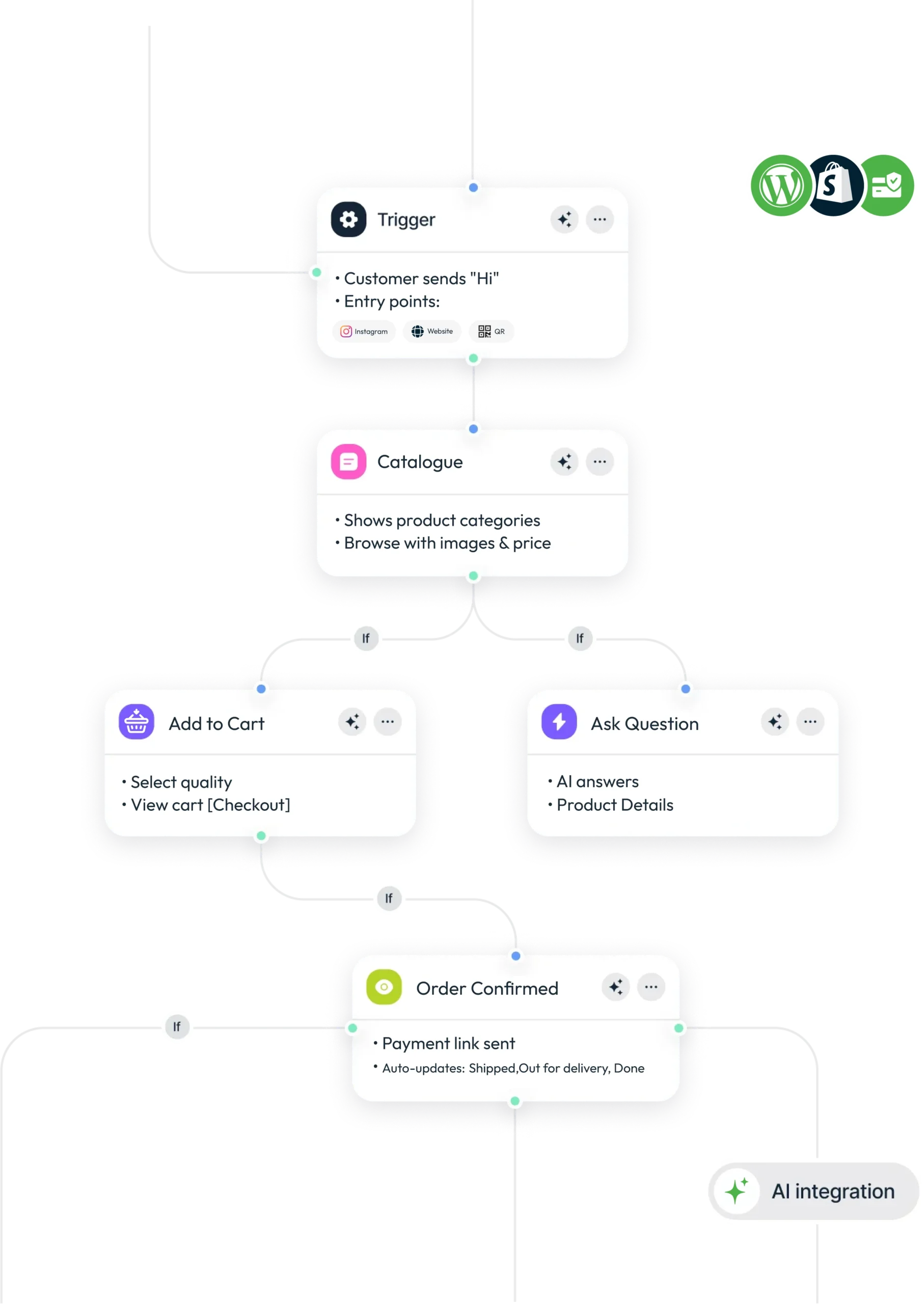
1. Browse product catalog
2. Add items to cart
3. Complete checkout
4. Get order confirmation
All inside WhatsApp
Feature Tags
Powered
Best
Built for Business
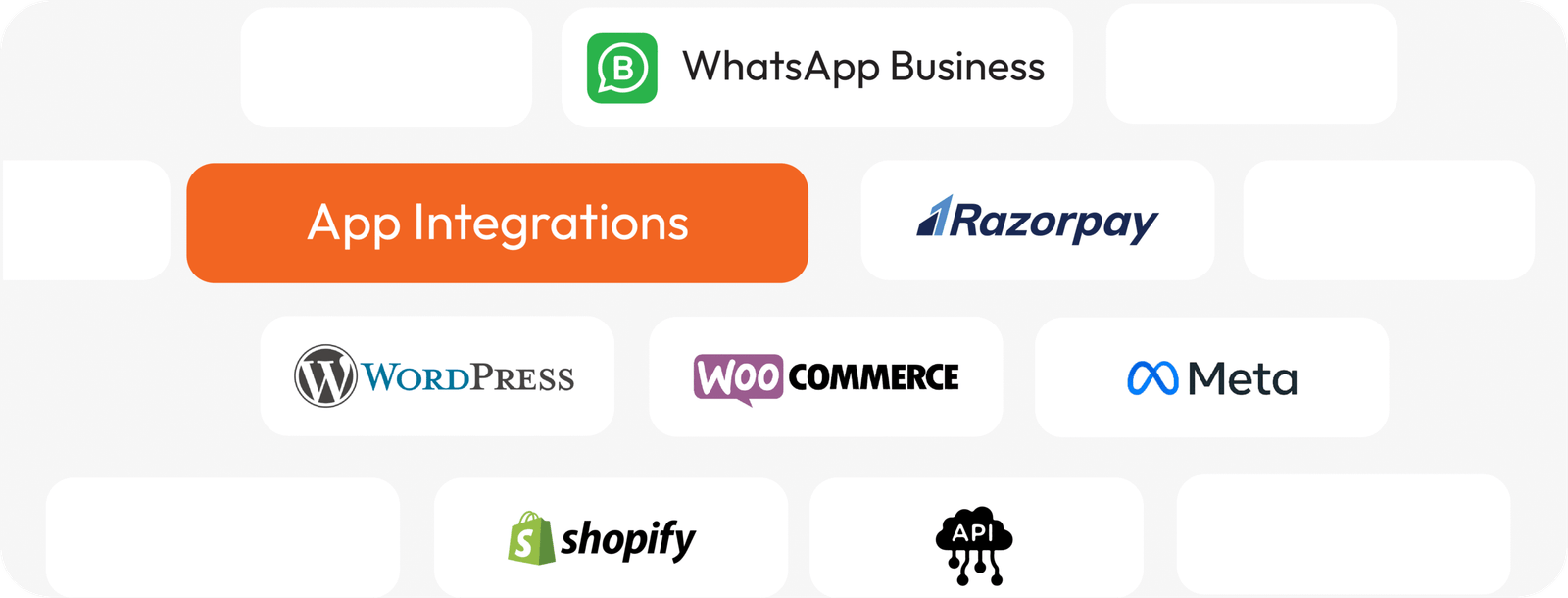
Peedi uses trusted platforms under the hood — WhatsApp for messaging, Razorpay for payments, Google Calendar for bookings, and AI models for smart responses. You just set up and sell.
Everything Your Store Needs
Payment, delivery, inventory — all connected to your WhatsApp store.
Never Miss an Order
Real-time alerts for every order, payment, and delivery update.
Plans & Pricing
Choose a plan that fits your workflow. Scale effortlessly with flexible pricing designed for every stage of growth.
Share your WhatsApp link anywhere — Instagram bio, Facebook page, website, Google Business profile, business cards, or QR codes on packaging and flyers. Anyone who taps the link and sends a message enters your store.
2.Do my customers need to download an app?
No. They use their existing WhatsApp — the app already on their phone. No downloads, no sign-ups, no passwords. They just message you.
3.How do I add products?
From your Peedi dashboard — upload product photos, set names, descriptions, prices, and variants (size, color). You can also bulk import via CSV if you have many products.
4.What payment methods can my customers use?
Online payments via Razorpay (UPI, debit/credit cards, wallets, net banking). Cash on Delivery (COD) is also supported. You can enable or disable payment methods from your dashboard.
5.How does checkout work on WhatsApp?
When a customer taps checkout, a WhatsApp Flow screen opens — they confirm items, enter delivery address, choose payment method, and place the order. All inside WhatsApp, no external website.
6.Can I track orders?
Yes. Your dashboard has a kanban board showing every order by status — New, Confirmed, Shipped, Delivered. You can update status and customers get automatic WhatsApp notifications at each step.
7.Can I use my existing phone number?
Yes. Connect your existing WhatsApp number. It works alongside your WhatsApp Business app — you'll see all conversations on both your phone and the Peedi dashboard.
8.I already have a WooCommerce store. Can I sync products?
Yes. Install our WordPress plugin and your WooCommerce products sync automatically to your WhatsApp store. Manage inventory in one place, sell on both channels.
9.How many products can I list?
Depends on your plan — 100 products on Starter, 500 on Growth, Unlimited on Pro. Categories are unlimited on all plans.
10.Can I manage delivery and shipping?
Yes. Add delivery partners from your dashboard, assign them to orders, and customers get automatic dispatch and delivery notifications on WhatsApp.
11.Can I create orders manually for walk-in customers?
Yes. The POS (Point of Sale) mode lets you create orders manually — search products, add to cart, enter customer details, and record the sale.
12.Is there a free trial?
Yes — 1 month, full access to all features, no credit card required. Set up your store and start selling risk-free.